
Check Spelling for Accurate Writing in Online Notepad
Spelling accuracy is crucial when writing notes, documents, or creative content online. Our online notepad with spell check toggle allows you to easily switch the spell checker on or off according to your needs. Whether you want continuous spelling assistance or prefer distraction-free writing, this feature gives you full control. In this guide, we’ll explain how to use the spell check toggle, its benefits, and why it makes our online notepad one of the best writing tools available.
Why a Spell Check Toggle is Important
Most online editors force spell checking by default, which can be helpful but sometimes distracting—especially when writing in multiple languages or creative formats.
With our spell check toggle:
- You decide whether to turn spell check ON when writing professional notes or turn it OFF for creative drafts.
- Hide underlines and focus only on your words when needed for cleaner interface.
- Re-enable spell check before saving or downloading to fix all errors quickly and to get error-free output.
How to Use the Spell Check Toggle
- Open the Online Notepad – Visit our notepad editor.
Hover your cursor over “Help” menu in the menu bar. There is the “Toggle Spell Check” option.
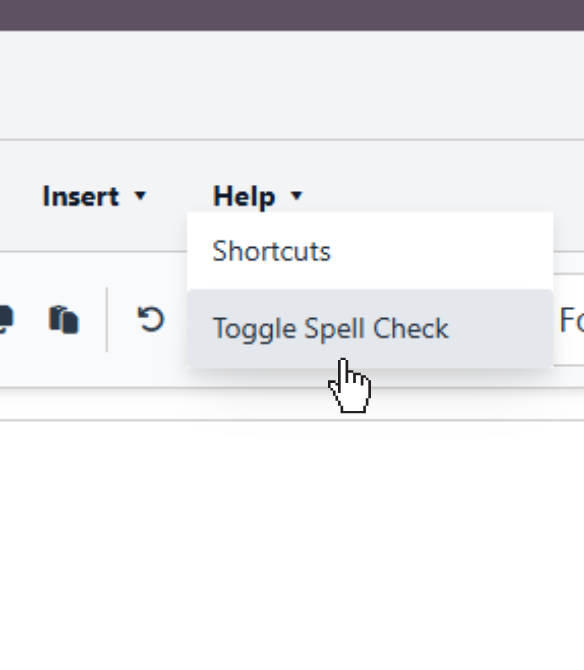
- Switch ON – Misspelled words get underlined in real-time.
- Switch OFF – No underlines; distraction-free writing.
Benefits of Using Our Online Notepad with Spell Check
- Customizable Experience – Write your way, with or without visual cues.
- Professional Quality Notes – Eliminate typos instantly when needed.
- Browser Compatibility – Works smoothly in Chrome, Edge, and Firefox.
- Mobile Friendly – Toggle spell check easily, even on smaller screens.
Advanced Writing Tips
- Use Keyboard Shortcuts for quick edits.
- Combine spell check with formatting (Bold, Italic, Underline) to create polished documents.
- Use Dark Mode for a comfortable writing experience during long sessions.
Related Guides
- Keyboard Shortcuts – Work faster with quick commands.
- How to save a document – Learn how to store your notes in text or PDF formats.
- Formatting Notes – Learn how to style your text with styling options.
- Dark Mode Notepad – Write comfortably with a sleek, eye-friendly dark theme.