
Formatting Notes
Formatting your notes is essential for improving readability and presentation. Our online notepad provides a variety of formatting tools such as bold, italic, underline, font styles, font sizes, emojis, and special characters that allow you to style your text and create organized documents with minimal effort. Whether you are writing a quick reminder or preparing structured content, formatting ensures clarity and professionalism.
Why Formatting Matters
Proper formatting helps:
- Highlight important points with bold or underline.
- Improve visual structure using headings and font variations.
- Add creative touches with emojis and special symbols.
- Prepare notes for professional, academic, or personal use without extra editing.
Whether you’re a student, writer, or professional, formatting ensures your notes are clear and visually appealing.
Text Formatting Features in Our Online Notepad
Bold, Italic & Underline
- Bold (Ctrl + B / Cmd + B): Makes text stand out.
- Italic (Ctrl + I / Cmd + I): Adds emphasis or style.
- Underline (Ctrl + U / Cmd + U): Highlights key phrases.
Font Styles and Sizes
- Choose from 20+ professional fonts to match your document’s tone.
- Adjust font size for headings, subheadings, or smaller details.
Emojis & Special Characters
- Insert emojis to add creativity or emotion.
- Use symbols for academic or technical content.
How to Format Notes Online
- Highlight the text you want to style.
- Click the formatting icons in the toolbar (Bold, Italic, Underline, Font Style, Size).
- Or use keyboard shortcuts for quick actions (e.g., Ctrl + B for Bold).

You can select from 20+ fonts from the “Font Family” menu.
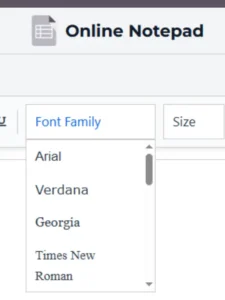

And adjust the size of your selected font from “Font Size” menu.
Best Practices for Note Formatting
- Keep formatting consistent by avoid too many fonts.
- Use headings and spacing to break long notes into sections.
- Review your notes before saving them in TXT or PDF format.
Guides
For a smoother experience, explore these useful guides:
- Keyboard Shortcuts – Speed up formatting actions with quick key combinations.
- How to Save a Document – Learn how to store formatted notes in TXT or PDF.
- Dark Mode Notepad – Write comfortably with a sleek, eye-friendly dark theme.
- Spell Check Feature – Learn how to enable or disable real-time spell checking to improve writing accuracy.